
Quickstart
DewaVPS Virtual Private Servers (instances) are Linux-based virtual machines (VMs/Instance) running on our virtualized infrastructure. Each instance you create is a new server you can use independently or as part of a larger cloud setup.
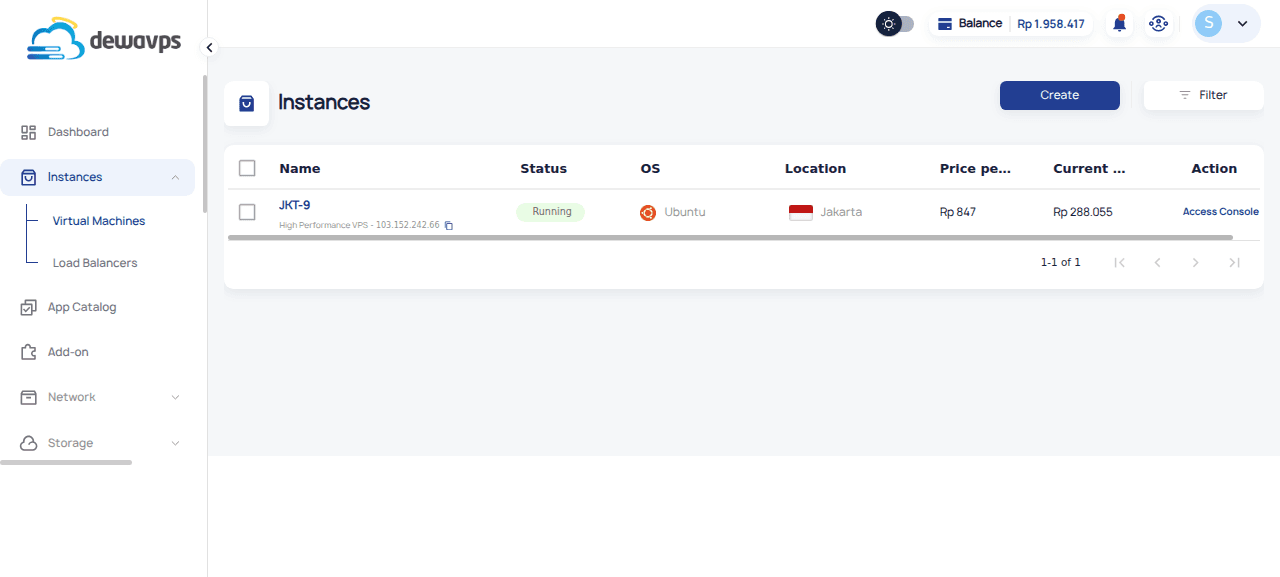
Creating Instance
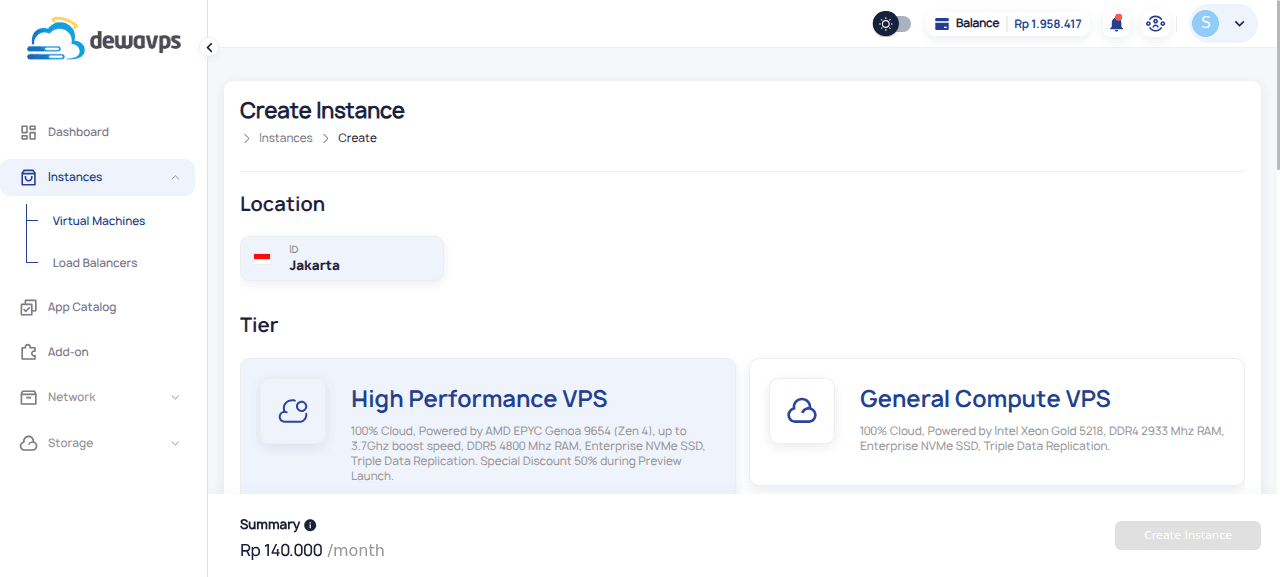
- Navigate to the Instances section within the DewaVPS control panel and select Create.
- Choose an Image: Select the base for your instance. This could be a standard Linux distribution, a pre-configured application stack, or potentially a snapshot or backup you've previously created.
- Choose a Plan and Size: Select the resources for your instance, determining its RAM, disk space, vCPUs, and associated cost. Consider your application's needs when choosing or just use the prebuilt package.
- Configure Options: You can customize several settings now or adjust them later. To use defaults, scroll down and click Create Instance. Otherwise:
- (Optional) Add Extra Storage: Attach additional block storage volumes if needed.
- Choose a Datacenter Location: Select the physical region where your instance will be hosted.
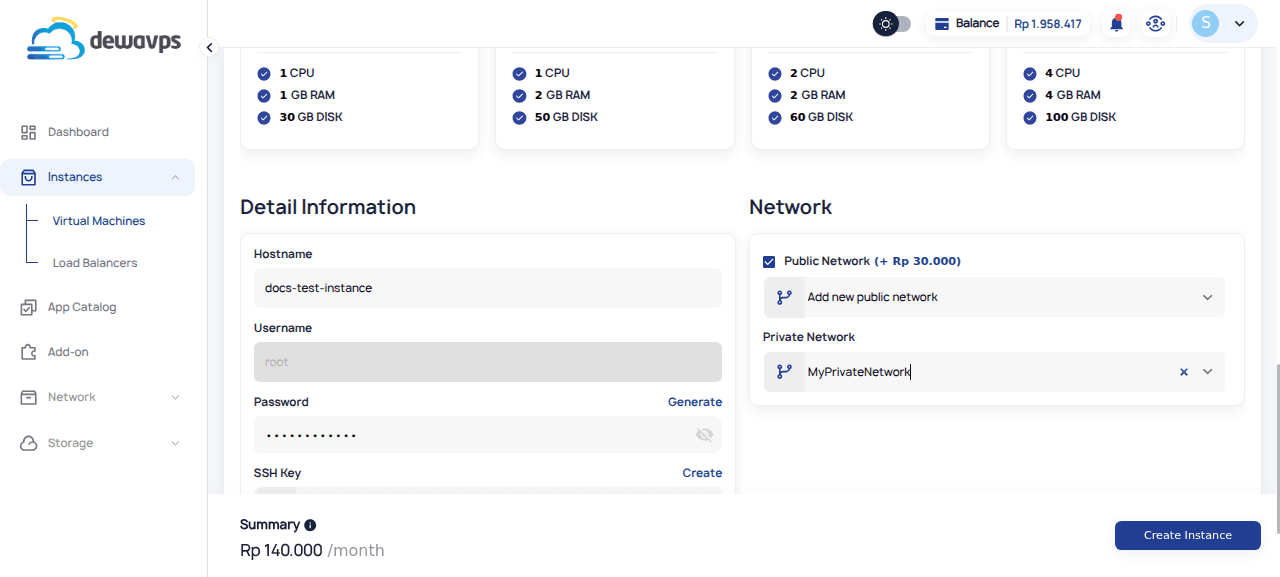
- Network Settings: Assign your instance to a specific network if you use DewaVPS private networking features.
- Select Additional Features: Enable options like dedicated CPU, automated backups, or monitoring tools.
- Authentication Method: Choose between using an SSH key (recommended for security) or setting a root password for the instance. If you haven't uploaded an SSH key, you can do so now or opt for password authentication.
- Finalize: Enter a unique hostname (name) for your instance.
- Click Create.
You can then proceed to connect to your newly created instance using SSH or access it through a web-based VNC console.
Connecting to Instance
You can connect to your instance using either SSH or a web-based VNC console.
- SSH
- VNC
Connecting via SSH
To connect using a terminal (available on Linux, macOS, or Windows via WSL or clients like PuTTY):
- Open your terminal application.
- Enter the command:
ssh username@your_instance_ip_address- Replace
your_instance_ip_addresswith the actual IP address assigned to your DewaVPS instance. - Replace
usernamewith the appropriate user. For many Linux distributions, the default administrative user isroot. Check the specifics of the image you chose.
- Replace
- Press
ENTER. - The first time you connect, you'll likely see a message asking to confirm the host's authenticity (the ECDSA key fingerprint). Type
yesand pressENTER. - If you are using password authentication, you will be prompted to enter the root password you set during creation. If you are using SSH keys, you should be logged in directly (or after entering your SSH key passphrase if you set one).
Windows users can also use SSH clients like PuTTY or the built-in OpenSSH client in PowerShell/Command Prompt.
Accessing via VNC on Browser
DewaVPS also provides a way to access your instance directly through your web browser using a VNC (Virtual Network Computing) console. This can be useful for initial setup, graphical interface access (if your instance has one), or troubleshooting.
- Navigate to the Instances section in the DewaVPS control panel.
- Find the specific instance you want to access.
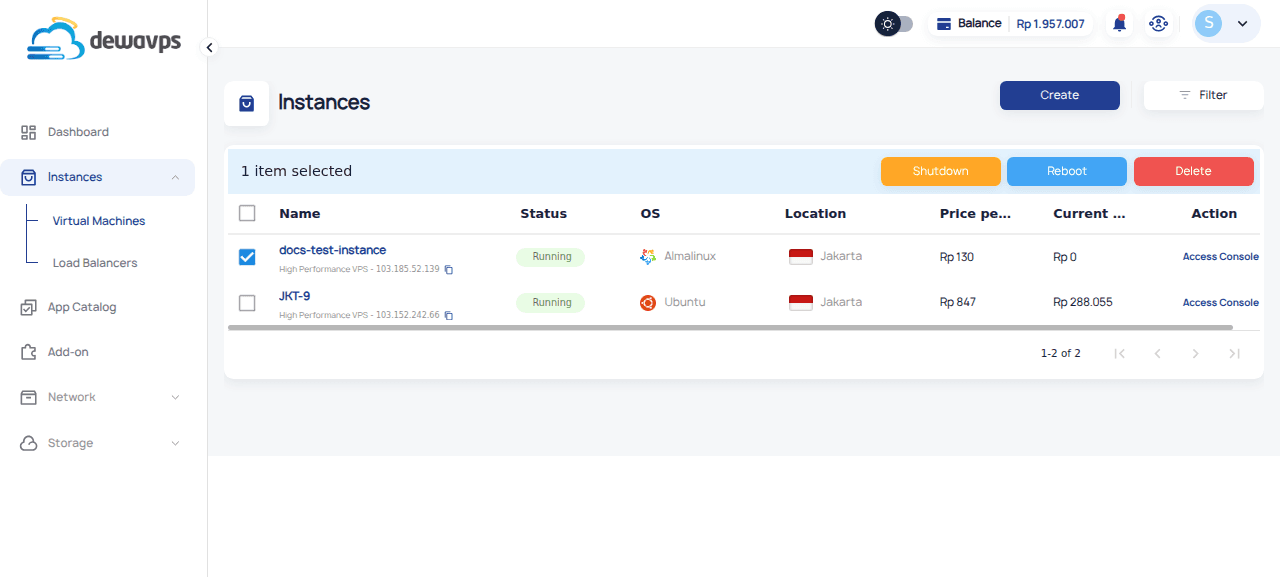
- Click the Access Console button listed on your Instance.
- A new browser tab or window should open, displaying the console of your instance.
- You may be prompted to log in using the username (e.g.,
root) and the password you set during instance creation.
Once connected via VNC, you will see a graphical or text-based interface of your instance within your web browser.
Deleting Instance
Important: Deleting Instance is a permanent action. It will irreversibly delete the instance, all data stored on its primary disk, any automated backups associated with it, and potentially other selected linked resources.
- Before deleting: If you need to keep any data or a specific state of the server, consider creating a manual snapshot or ensuring your essential data is backed up elsewhere before proceeding.
To delete an instance:
- Go to the instance list in the DewaVPS control panel.
- Select the instance you wish to delete. There is delete button on upper right of the list to delete the instance. Select the Delete option.
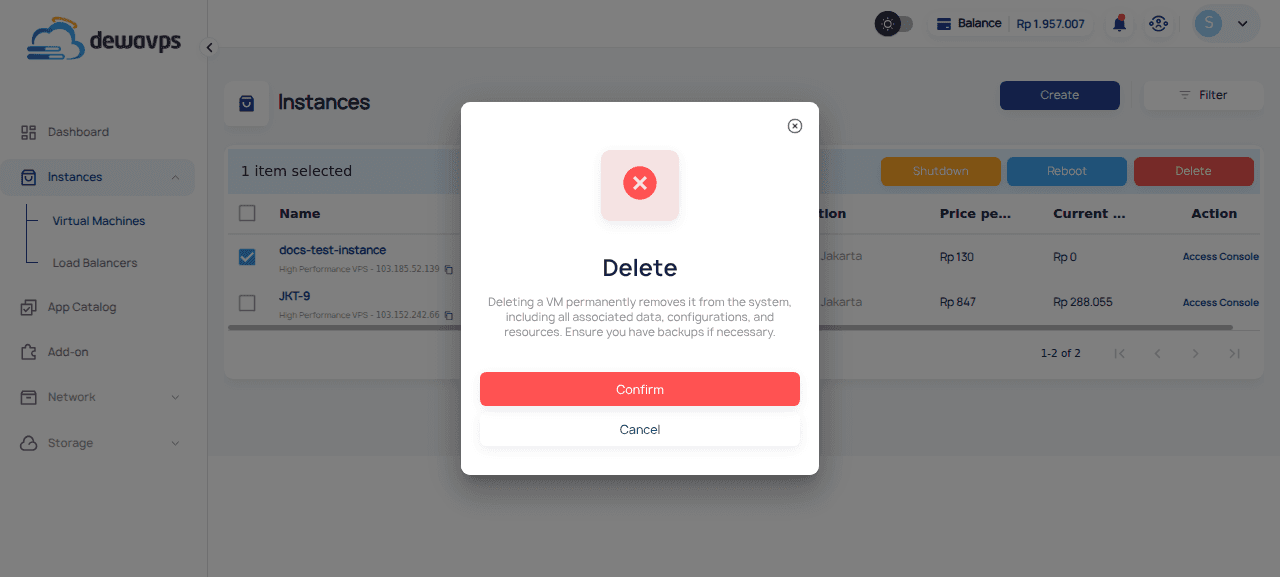
- You will be asked whether you want to delete this instance or not.
- Click the final Confirm button.