

Create Instance
This guide walks you through creating a new virtual private server (Instance) using the DewaVPS control panel.
Prerequisites
- A DewaVPS account (register at app.dewavps.com)
- Sufficient account balance
1. Navigate to Instance Creation
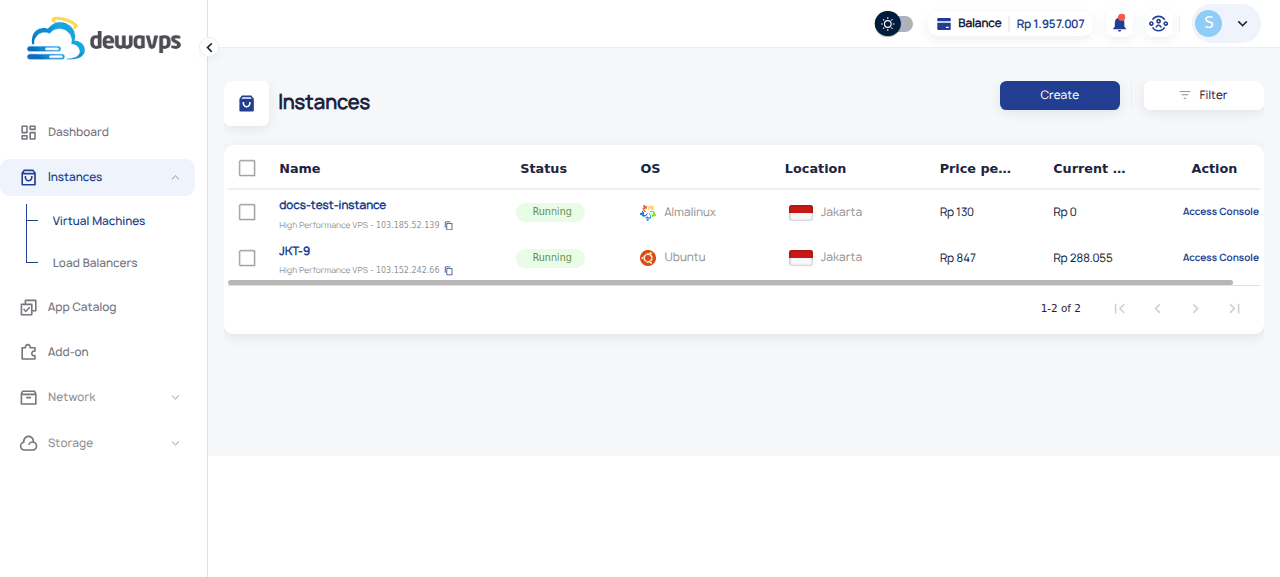
- Log in to your DewaVPS dashboard.
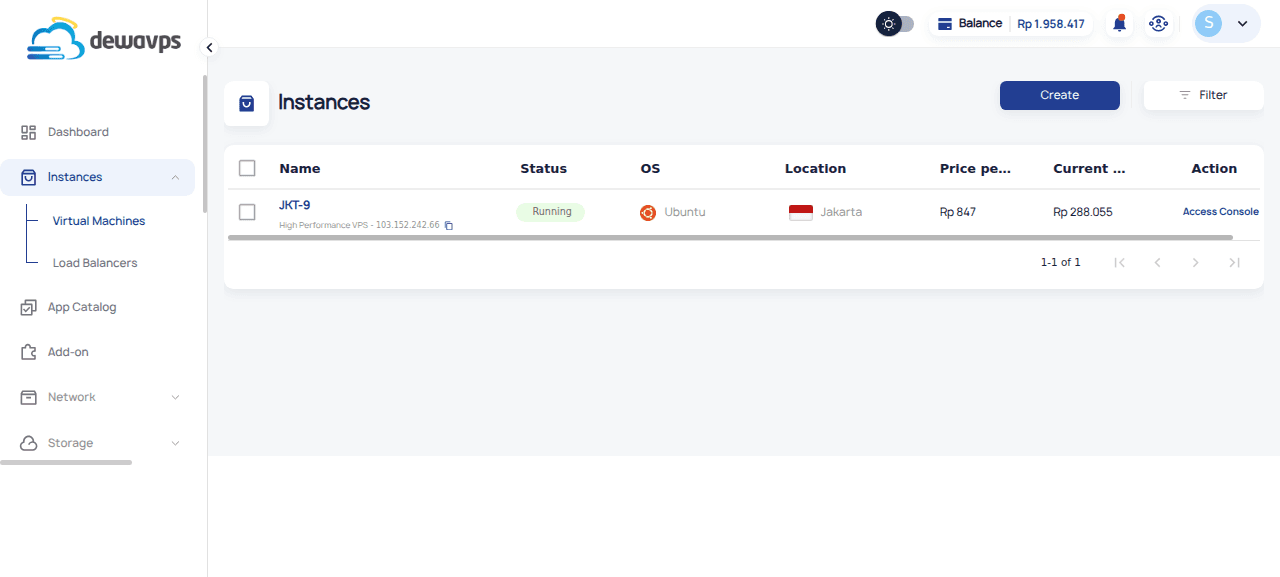
- Click Instances → Virtual Machines.
- Click the Create button.
2. Choose Location
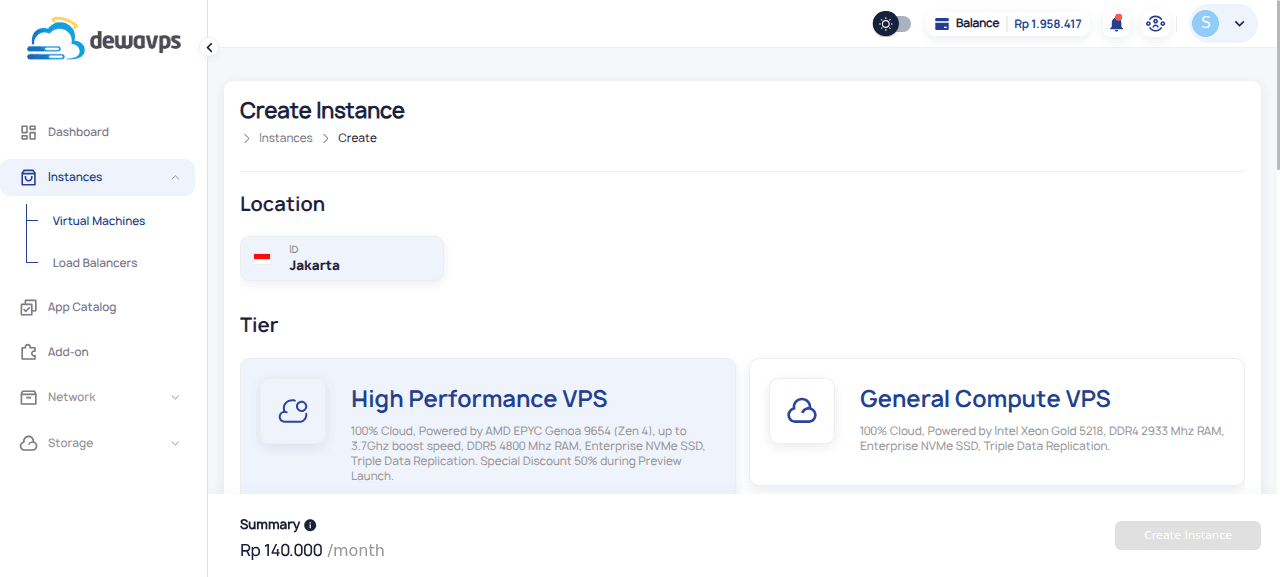
Select the datacenter region where your instance will be hosted. Currently available: Jakarta, ID.
3. Choose Tier
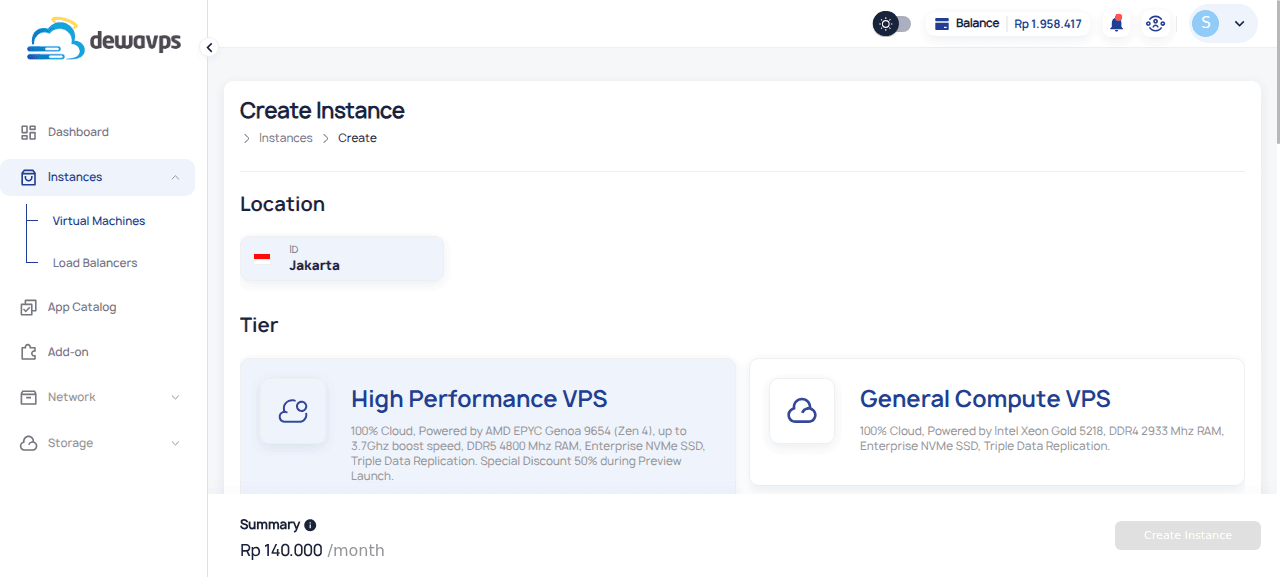
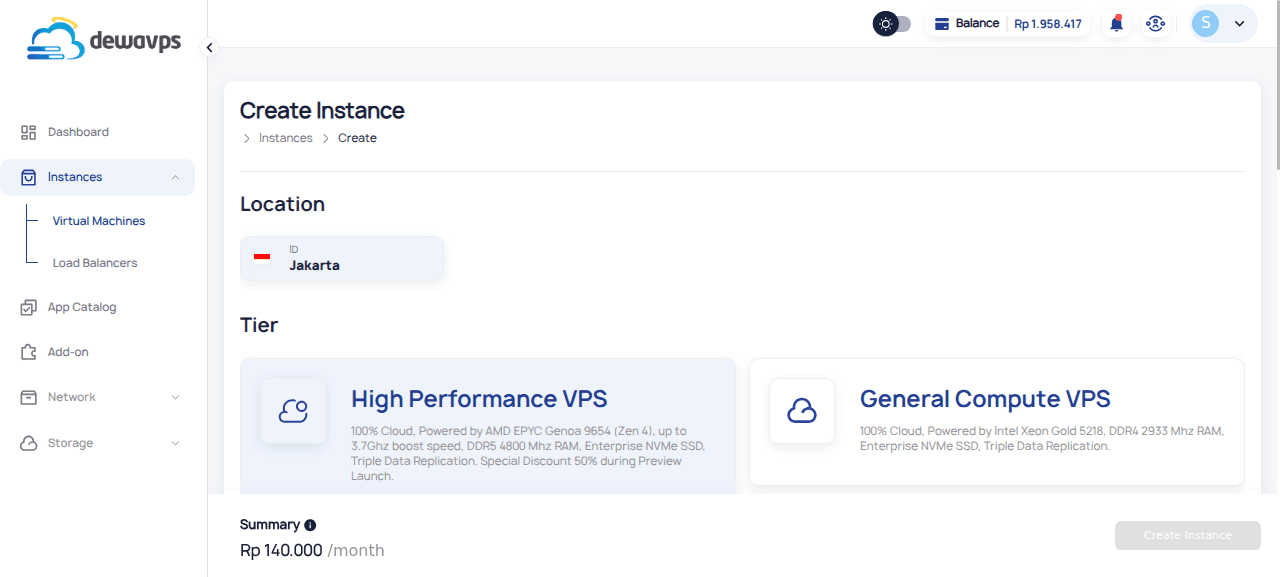
Select the performance tier that best suits your needs:
| Tier | Description |
|---|---|
| High Performance VPS | AMD EPYC Genoa 9654 (Zen 4), up to 3.7GHz, DDR5 4800MHz RAM, Enterprise NVMe SSD, Triple Data Replication. 50% discount during Preview Launch. |
| General Compute VPS | Intel Xeon Gold 5218, DDR4 2933MHz RAM, Enterprise NVMe SSD, Triple Data Replication. |
4. Choose OS/Application
Operating System Tab
Available operating systems:
- Almalinux (Version 9)
- Centos
- Debian
- Fedora
- Ubuntu
- Windows
- Mikrotik
- Alpine
- Arch Linux
- Cloudlinux
- RHEL
- Rocky Linux
- Kali Linux
Application Tab
Pre-configured applications include:
- Web Panels: Cyberpanel, WHM & cPanel, Plesk, aaPanel
- Web Servers: Nginx, LAMP/LEMP, FrankenPHP
- Containers: Docker, Portainer
- Databases: MariaDB, PostgreSQL, MongoDB, Redis Server
- Monitoring: Grafana, LibreNMS, UptimeKuma
- Productivity: NextCloud, Odoo, n8n
- And more: WordPress, Laravel, NodeJS, Jitsi Meet, Immich, OpenClaw, etc.
5. Configure Server Options
| Option | Description | Cost |
|---|---|---|
| Auto Backup | Enable automatic backups | Rp 1.000 per GB/month |
| Dedicated CPU | Dedicated CPU cores instead of shared | Additional cost |
6. Select Server Size
Choose between Package (pre-built) or Custom sizing:
Package Options
| Package | CPU | RAM | Disk | Monthly | Hourly |
|---|---|---|---|---|---|
| Small | 1 | 1 GB | 30 GB | Rp 115.000 | Rp 160 |
| Medium | 1 | 2 GB | 50 GB | Rp 185.000 | Rp 257 |
| Large | 2 | 2 GB | 60 GB | Rp 230.000 | Rp 319 |
| XL | 4 | 4 GB | 100 GB | Rp 410.000 | Rp 569 |
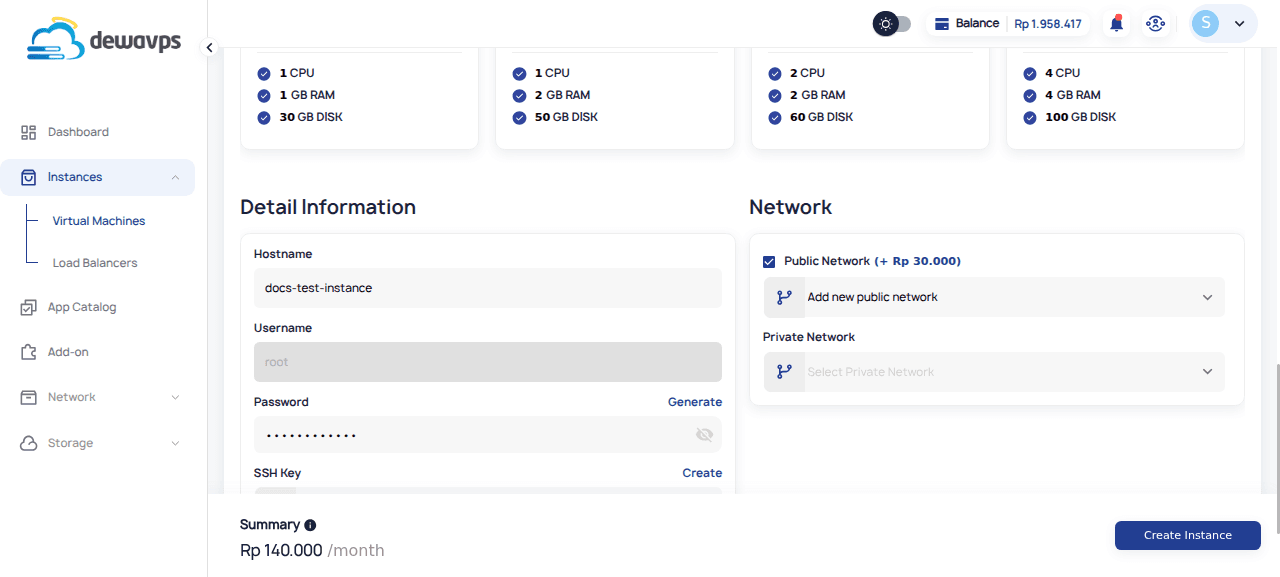
7. Provide Detail Information
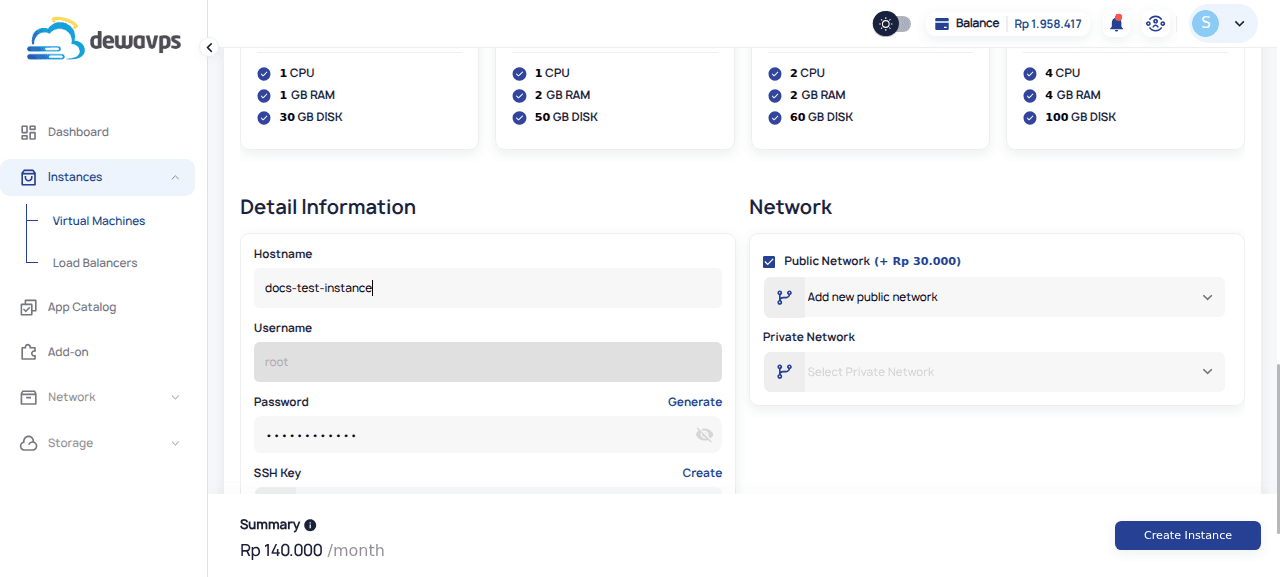
| Field | Description |
|---|---|
| Hostname | A unique name for your instance (e.g., web-server-01) |
| Username | Default is root (pre-filled) |
| Password | Root password for console/SSH access |
| SSH Key | Select an SSH key for secure authentication (optional) |
8. Configure Network
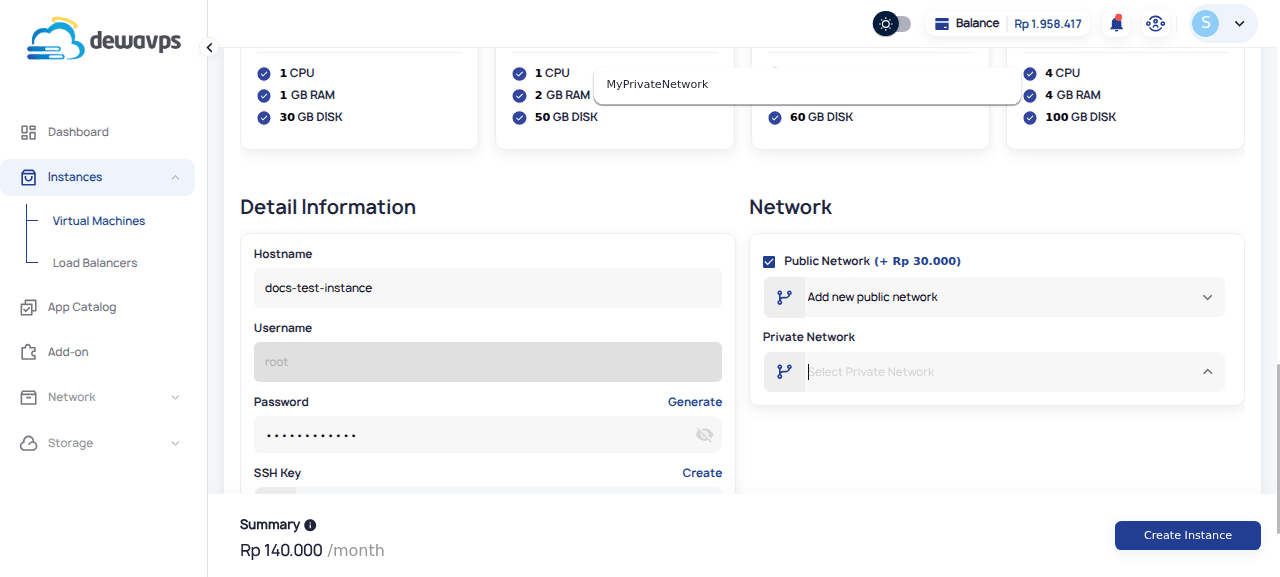
| Option | Description | Cost |
|---|---|---|
| Public Network | Assigns a public IP for internet access | + Rp 30.000/month |
| Private Network | Connect to instances internally without public internet | Free |
Note: You need to create a Private Network first in Network → Private Network before you can select it here.
9. Create Instance
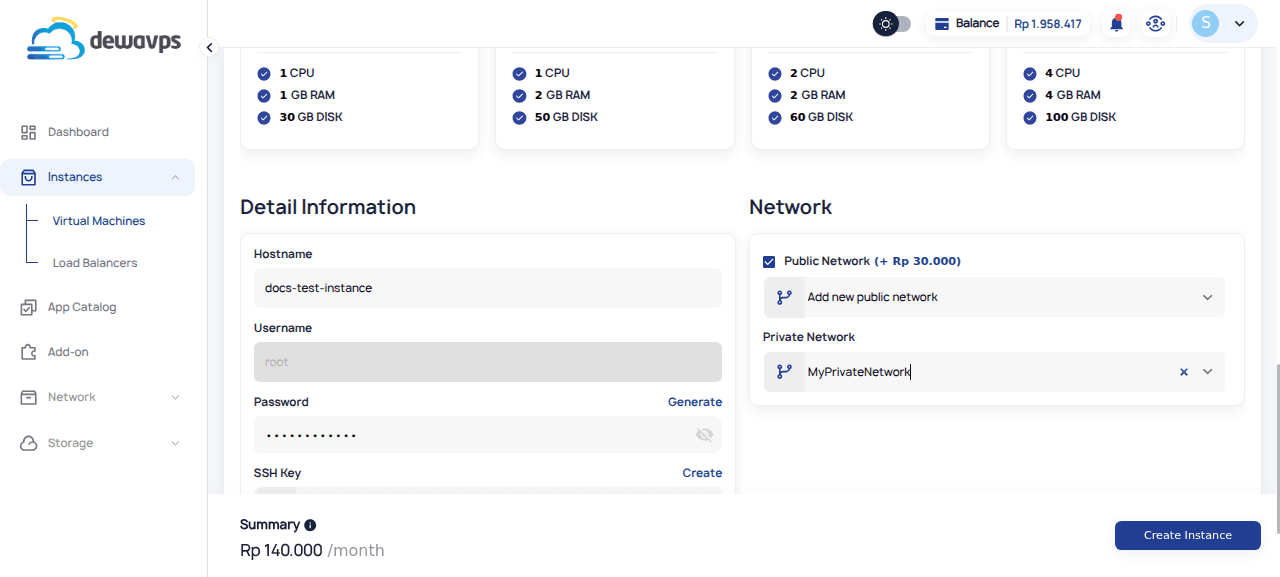
- Review all selected options and the estimated monthly cost.
- Click Create Instance.
- The instance will be provisioned (status: "Installing", then "Running").
Next Steps
- Connect to Instance — Access via SSH or VNC console
- Instance Details — Manage your instance