

SSL Certificates
SSL certificates enable HTTPS for your domains, encrypting communication between clients and your servers. DewaVPS provides self-signed certificates for development and testing purposes.
Creating a Self-Signed Certificate
1. Navigate to SSL Certificates
Go to Key Management → SSL Certificates.

2. Click Create Certificate
Click the Create Certificate button.
3. Fill in Certificate Details

| Field | Description |
|---|---|
| Name | A friendly name to identify the certificate (e.g., My Website SSL) |
| Common Name | The domain name for the certificate (e.g., example.com) |
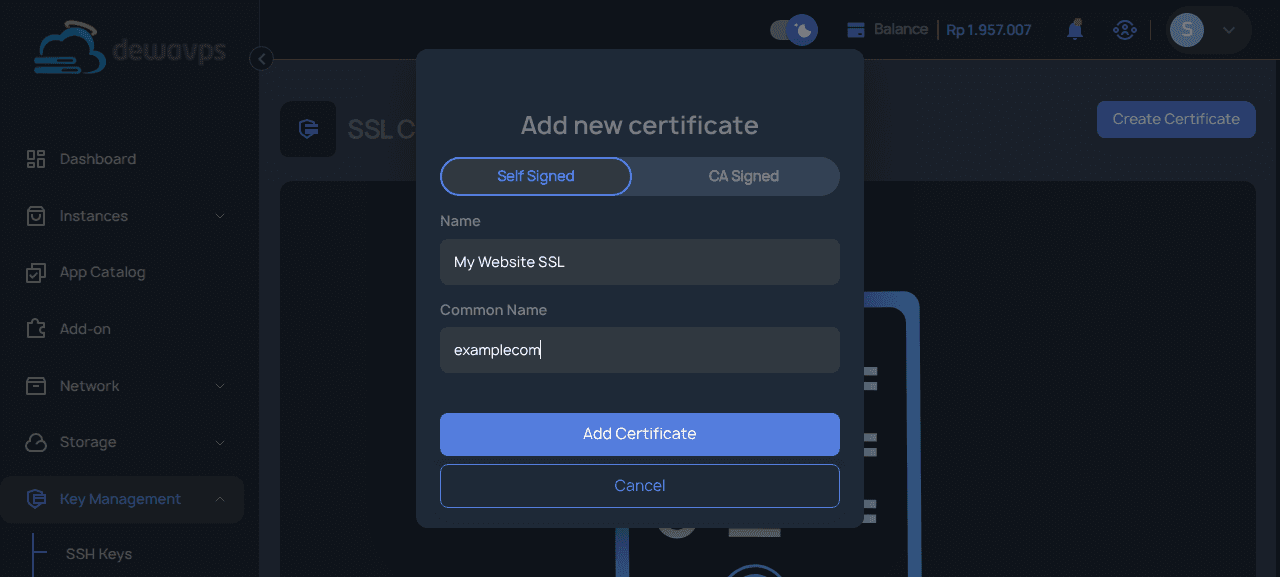
4. Add Certificate
Click Add Certificate to generate the certificate.
Certificate Details
After creation, the certificate appears in the list with the following information:
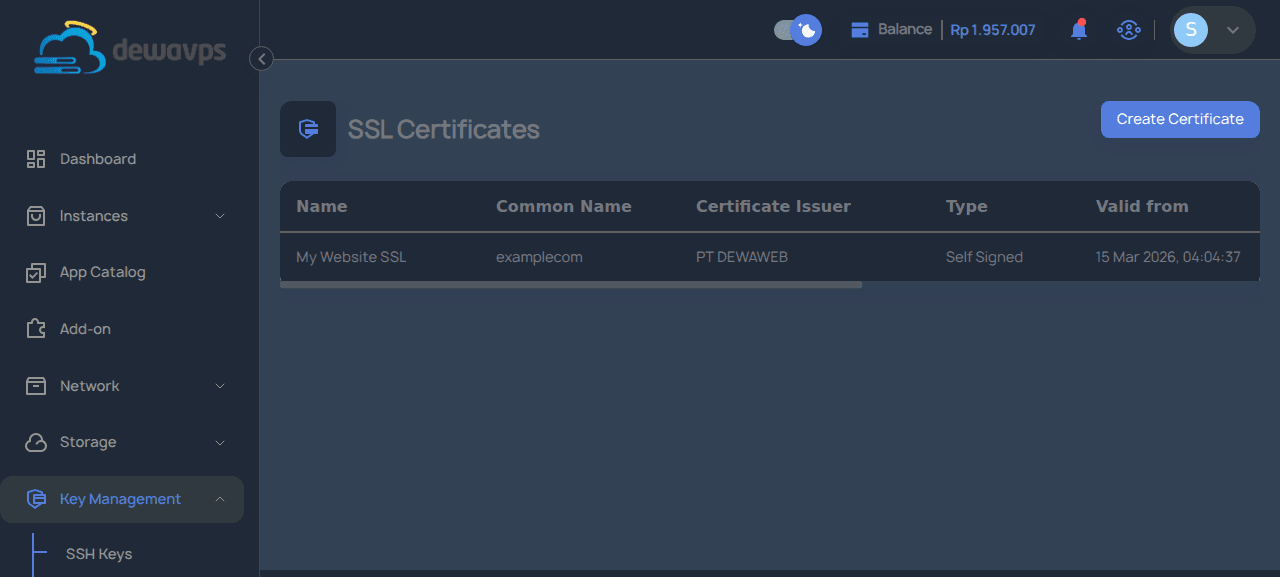
| Column | Description |
|---|---|
| Name | Friendly name for the certificate |
| Common Name | Domain name the certificate is issued for |
| Certificate Issuer | PT DEWAWEB (self-signed) |
| Type | Self Signed |
| Valid from | Certificate creation/start date |
| Valid until | Certificate expiration date (10 years from creation) |
| Created At | When the certificate was generated |
Self-Signed vs CA-Signed Certificates
Self-Signed Certificates (DewaVPS)
- Free — No cost
- Instant — Generated immediately
- Secure encryption — Data is encrypted
- Browser warning — Browsers show "Not Secure" warning because the certificate is not trusted by a Certificate Authority
- Best for: Development, testing, internal services
CA-Signed Certificates (Recommended for Production)
For production websites, we recommend using a Certificate Authority (CA) signed certificate:
- Trusted by browsers — No security warnings
- Free options — Let's Encrypt, ZeroSSL
- Paid options — DigiCert, GeoTrust, Sectigo
You can obtain free SSL certificates from:
- Let's Encrypt — Free automated certificates
- Dewaweb SSL — Dewaweb offers SSL certificates from trusted brands with 24/7 support
Visit Dewaweb SSL Certificates for more information.
Custom Certificates
For production websites that require trusted SSL certificates with advanced features, you can purchase custom certificates from Dewaweb:
- Best prices — Competitive pricing from trusted brands like DigiCert, GeoTrust, and Sectigo
- Ninja Support 24/7 — Expert assistance anytime you need help
- Quick activation — Fast certificate issuance and setup support
- Wide selection — DV, OV, EV, and wildcard certificates available
Visit Dewaweb SSL Certificates to browse available options and get professional support for your SSL needs.
Installing SSL Certificate on Your Instance
After obtaining a certificate, you'll need to install it on your web server. The process varies by web server:
Nginx
server {
    listen 443 ssl;
    server_name example.com;

    ssl_certificate /path/to/certificate.crt;
    ssl_certificate_key /path/to/private.key;
}
Apache
<VirtualHost *:443>
    ServerName example.com
    SSLEngine on
    SSLCertificateFile /path/to/certificate.crt
    SSLCertificateKeyFile /path/to/private.key
</VirtualHost>
Deleting a Certificate
- Navigate to Key Management → SSL Certificates.
- Click the delete action for the certificate.
- Confirm the deletion.
Note: Deleting a certificate from DewaVPS does not remove it from your instances. You must manually update your web server configuration.