

SSH Keys
Adding an SSH key allows you to securely access your DewaVPS instances without using passwords.
Prerequisites
Before adding an SSH key, you need to generate one on your local machine:
# Generate a new ED25519 SSH key (recommended)
ssh-keygen -t ed25519 -C "your_email@example.com"

# Or generate an RSA key (if ED25519 is not supported)
ssh-keygen -t rsa -b 4096 -C "your_email@example.com"
Press Enter to accept the default file location, then copy your public key:
cat ~/.ssh/id_ed25519.pub
# or: cat ~/.ssh/id_rsa.pub
Steps to Add an SSH Key
-
Log in to your DewaVPS control panel.
-
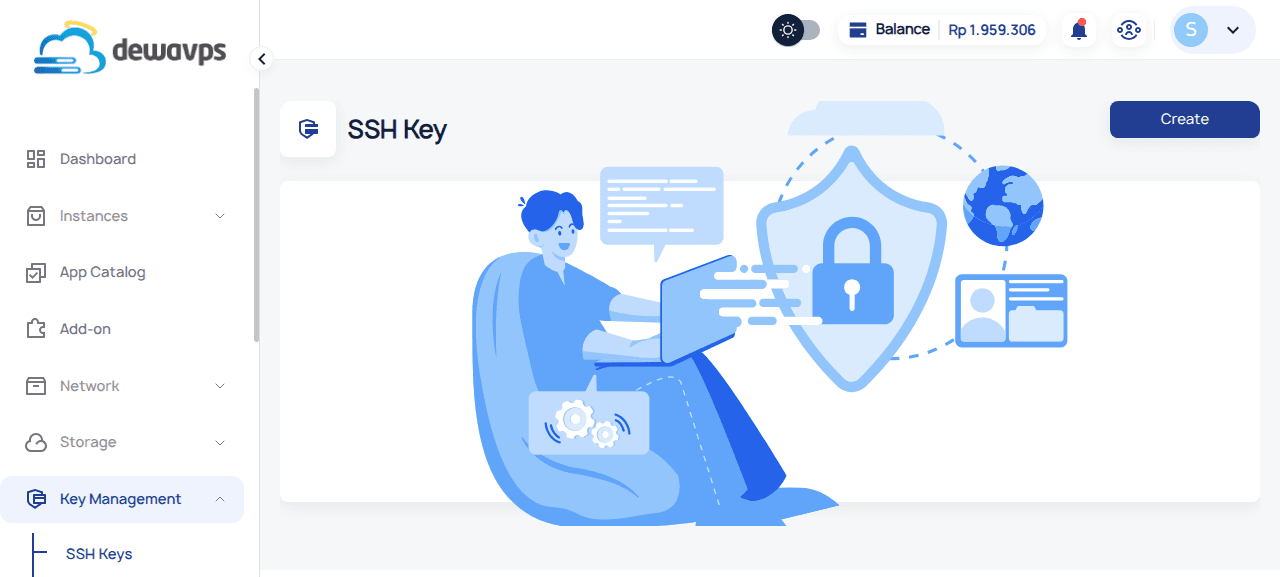
Navigate to Key Management → SSH Keys section.
-
Click the Create button.
-
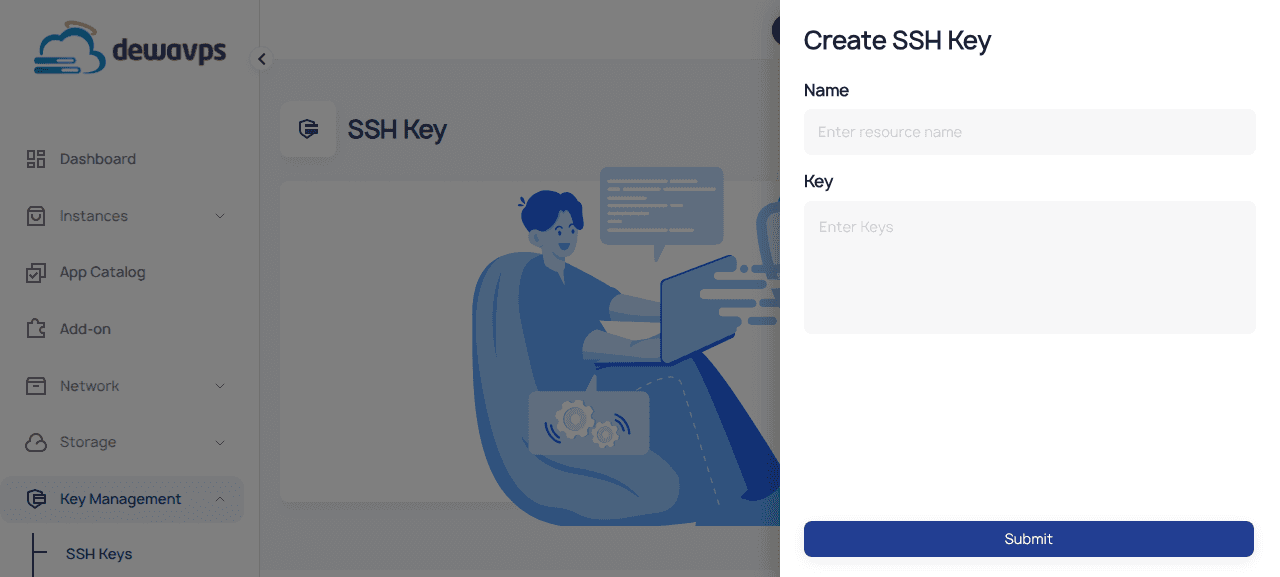
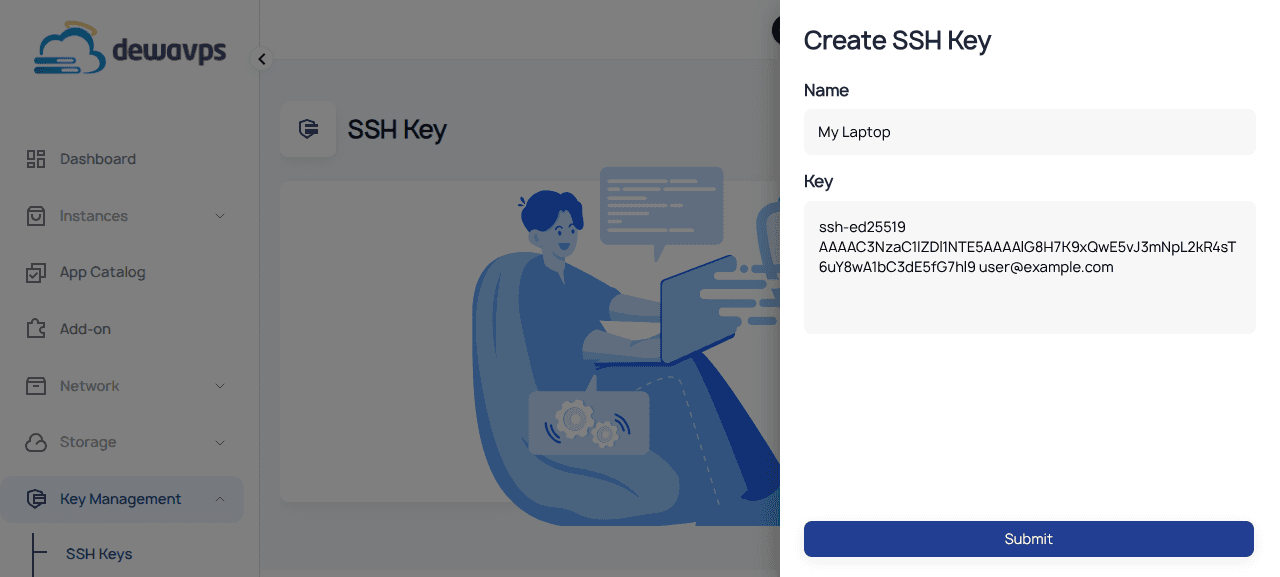
Enter a descriptive name for the key (e.g.,
My Laptop). -
Paste your public SSH key into the Keys field.
-
Click Submit to register the key.
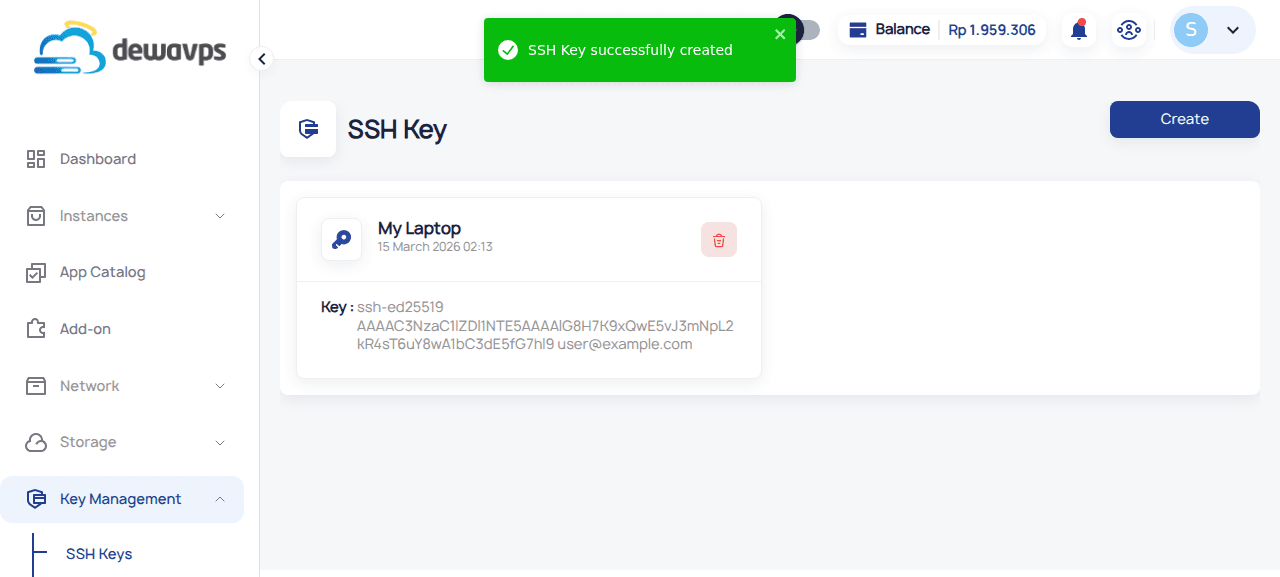
Your SSH key is now ready to be used for secure login to your instances. You can expand the key entry to view its details:
Using SSH Keys with Instances
When creating a new instance, you can select your SSH key from the dropdown in the SSH Key field. This will automatically configure the instance to accept your SSH key for authentication.
After the instance is created, you can SSH into it without a password:
ssh root@your_instance_ipDeleting an SSH Key
- Navigate to Key Management → SSH Keys.
- Expand the key entry by clicking on it.
- Click the Delete button.
- Confirm the deletion in the dialog.

Note: Deleting an SSH key does not remove it from instances that were already created with that key. You would need to manually remove the key from those instances.